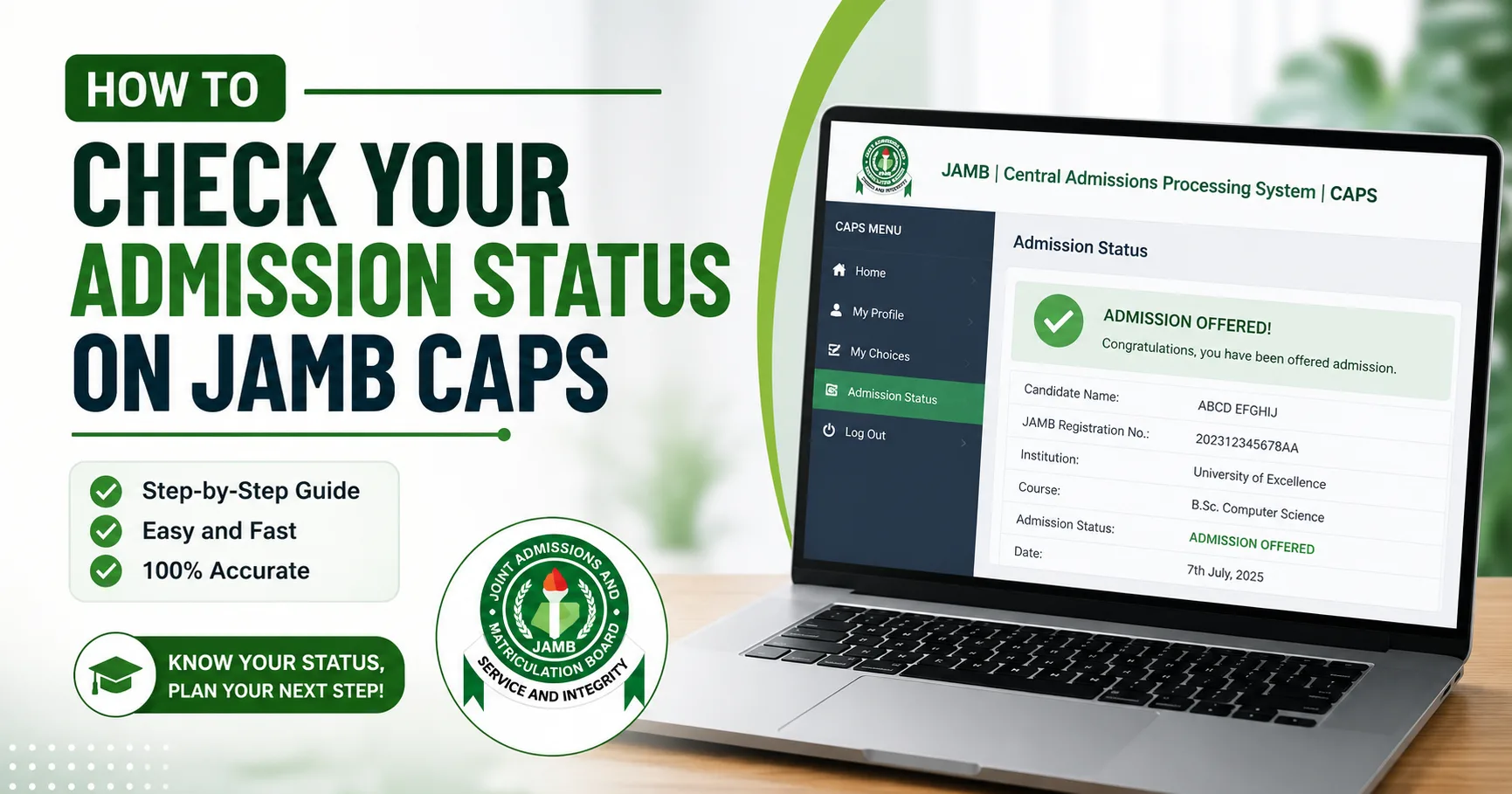
If you sat for the 2026 UTME or applied through Direct Entry, learning how to check your admission status on JAMB CAPS is the single most important task left on your admission journey. Many candidates pass their exams, clear post UTME screening, and still lose their spot simply because they did not monitor their CAPS profile on time.
This guide walks you through the exact process, in plain language, so you never miss an update on your 2026/2027 admission.
What Is JAMB CAPS and Why It Matters
CAPS stands for Central Admission Processing System. It is the official platform the Joint Admissions and Matriculation Board uses to manage admissions into every university, polytechnic, and college of education in Nigeria.
Once your chosen institution finishes its screening process, it uploads a recommendation to CAPS. From there, JAMB reviews and either approves or queries the recommendation. Your job as a candidate is to log in regularly and see what stage your application has reached.
Knowing how to check your admission status on JAMB CAPS is not optional. It is the only way to confirm that an institution has actually offered you a place, because your school may not always call or text you directly.
Step by Step: How to Check Your Admission Status on JAMB CAPS
Below is the complete process for checking your admission status on the JAMB CAPS portal.
Step 1: Visit the Official JAMB Portal
Open your browser and go to the official JAMB e-Facility website. Avoid third party links or agents claiming to check your status for a fee. JAMB does not charge candidates to view their CAPS dashboard.
Step 2: Log In to Your Profile
Enter the email address and password you used during your original JAMB registration. If you have forgotten your password, use the “Forgot Password” option to reset it before continuing.
Step 3: Locate the CAPS Section
On your dashboard, scroll down until you find the option labelled “Check Admission Status.” Click on it to proceed to the next stage.
Step 4: Select Your Examination Year
You will be asked to choose the year of your examination. Select 2026 to view your current admission cycle.
Step 5: Enter Your Registration Number
Type in your JAMB registration number exactly as it appears on your result slip, then click the button to access your CAPS dashboard.
Step 6: Open the Admission Status Tab
On the sidebar menu, click “Admission Status.” This is the exact page where your current standing is displayed.
Step 7: Read and Understand Your Status
Once the page loads, you will see one of several possible messages. The next section explains what each one means and what action you should take.
Common JAMB CAPS Admission Statuses and What They Mean
| Status Displayed | What It Means | Action to Take |
|---|---|---|
| Admission Offered / Congratulations | Your institution has offered you provisional admission | Accept the offer on CAPS and print your admission letter |
| Admission in Progress | Your application is still being reviewed | Keep checking regularly, no action needed yet |
| Not Admitted | You have not been considered for this course yet | Explore other available courses or wait for further updates |
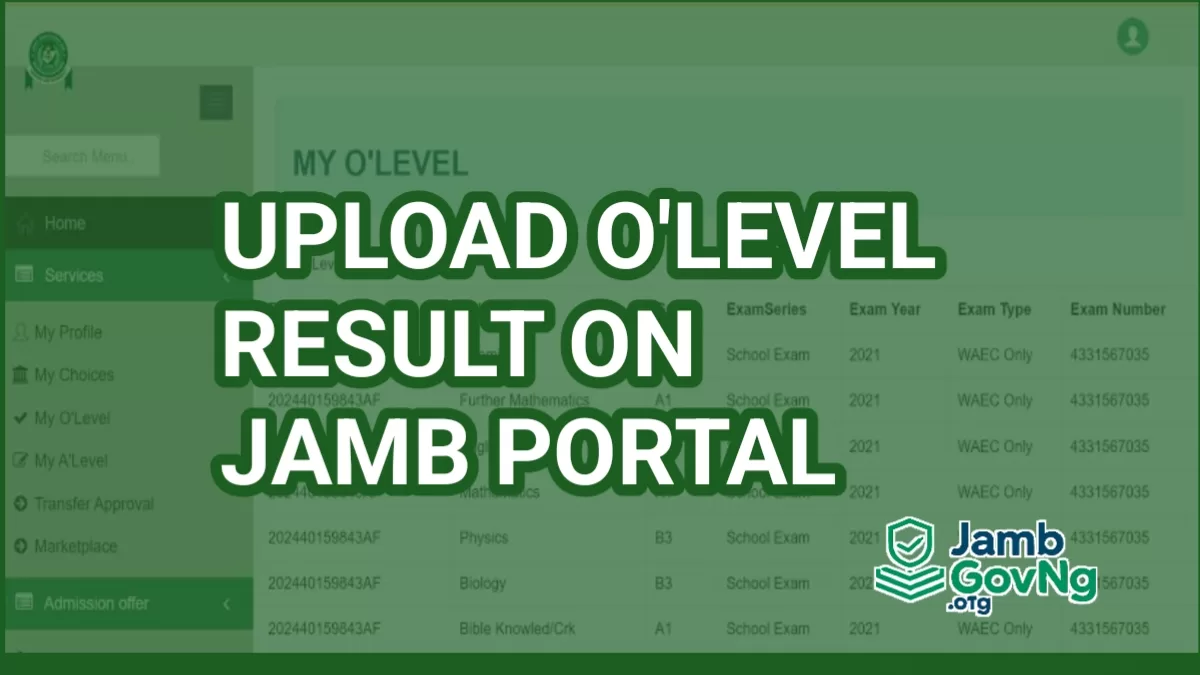
| Awaiting Decision | Your school has not yet decided on your file | Continue checking and confirm your O’Level result is uploaded |
| Transfer Approval | You have been offered a course different from your original choice | Review the new course before accepting or rejecting |
Understanding these terms is central to knowing how to check your admission status on JAMB CAPS with confidence, instead of guessing what each message implies.
Why Your Status May Not Be Updating
It is common for candidates to check daily and see no change for weeks. Before you panic, confirm the following:
- Your O’Level result has been correctly uploaded and verified on your JAMB profile
- Your institution has completed its screening exercise for your department
- You do not have any outstanding correction requested by JAMB, such as a name or date of birth mismatch
If all these are in order, patience is often the only remaining step. Admission lists are released in batches, so being on a later batch does not mean you have been rejected.
How to Accept or Reject Your Admission Offer on JAMB CAPS 2026/2027
Once your status shows that admission has been offered, you must formally respond on the portal.
- Log back into your JAMB profile and open the CAPS dashboard
- Read the offer details carefully, including the course and institution
- Click “Accept” if you are satisfied with the offer, or “Reject” if you wish to decline
- If you accept, print your admission letter immediately for safekeeping
Failing to accept your admission on CAPS within the stipulated window can lead to the offer being withdrawn and given to another candidate.
What Happens If You Accidentally Reject an Offer
This mistake is more common than many candidates realise. Once an offer is rejected on CAPS, it typically cannot be reversed through the portal. Your only option at that point is to contact JAMB directly through their official support channels or visit an accredited JAMB office to explain the situation. Always read the offer carefully before clicking any button.
Checking Admission Status Without Login: The SMS Method
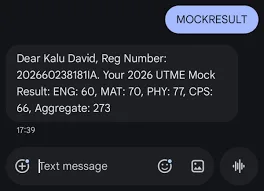
If you are unable to access the portal, JAMB also allows candidates to check a basic status update through SMS. This method only gives you a summary and does not allow you to accept or reject an offer. For any decision making, you must log in fully to the e-Facility portal.
Common Mistakes Candidates Make on JAMB CAPS
Below are mistakes that regularly cost candidates their admission slots:
- Waiting for a phone call or text from the school instead of checking CAPS directly
- Assuming that “Not Admitted” is final and giving up on the admission cycle entirely
- Ignoring a course change under “Transfer Approval” without reviewing the details
- Viewing the portal on a mobile browser without switching to desktop mode, which can hide the sidebar menu
- Forgetting to print the admission letter immediately after accepting an offer
Troubleshooting: Blank Page or Missing Sidebar on Mobile
Many candidates report seeing a blank welcome page with no visible menu when accessing CAPS on a phone. This usually happens because the site loads in mobile view, hiding the sidebar where your admission status appears.
To fix this on Chrome:
- Tap the three dots at the top right corner of your browser
- Select “Desktop Site” or “Request Desktop Site”
- Refresh the page and log in again
This simple adjustment resolves the issue for most candidates checking their admission status on JAMB CAPS from a mobile device.
Frequently Asked Questions
Does “Admission in Progress” mean I have been rejected?
No. It simply means your file is still under review. You should continue checking regularly rather than assume rejection.
Can I change my course after seeing my admission status?
Course changes are handled separately through JAMB’s change of course or change of institution service, which opens at specific periods announced by JAMB.
Is there a deadline to accept my admission?
Yes. JAMB always announces a specific deadline each admission cycle for candidates to accept their offers on CAPS. Missing this deadline can result in losing the offer.
Do I need to pay any fee to check my admission status?
No. Checking your admission status on JAMB CAPS is completely free through the official portal.
Conclusion
Learning how to check your admission status on JAMB CAPS puts you in control of your own admission journey rather than leaving you dependent on rumours or unconfirmed school announcements. Make it a habit to log in regularly, respond promptly to any offer, and keep your documents ready for registration once admission is confirmed.
Admission is only the first hurdle. Once you secure your spot, the next steps, such as understanding your school’s fees structure and course requirements, become just as important. Explore our related articles below to stay fully prepared for the semester ahead.


Leave a Comment